Advertisement
How clearing your Smart TV cache fixes freezing and slow performance
10th August, 2026 07:41 PM
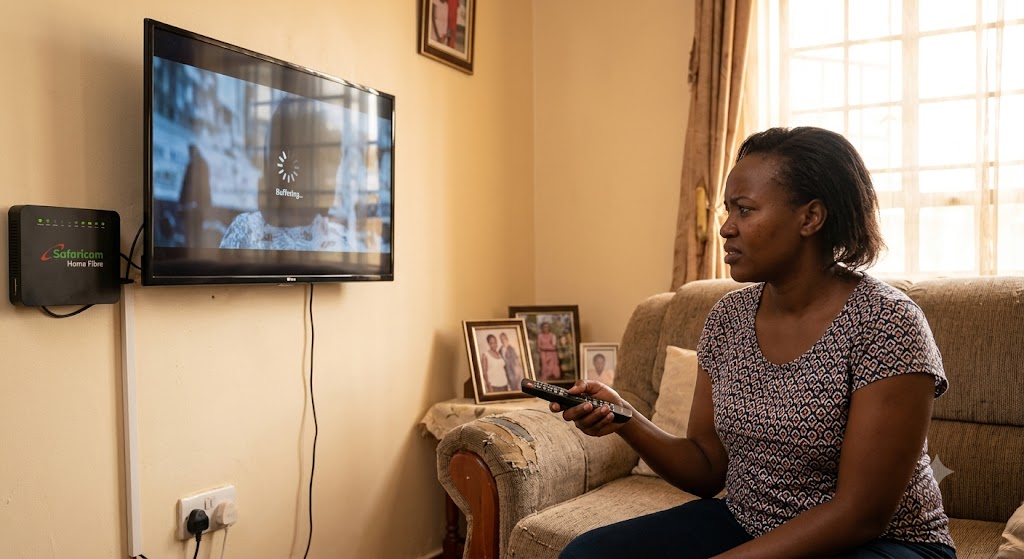
Settling down to watch YouTube, Showmax, or Netflix only for the app to freeze midway through a show is a familiar headache for families across Kenya. Most people blame a slow internet connection or a weak Wi-Fi signal when a smart TV buffers or stops responding.
However, the real culprit is often inside the television itself. Smart TVs rely on small internal storage systems that hold temporary files, called cache, to help apps open faster.
Over time, these temporary files pile up, taking up gigabytes of memory and clogging the entire system.
How temporary files slow down your television
Every time an app loads a movie banner, a profile picture, or a video clip, it saves a copy in the background memory. While this temporary storage helps apps start quickly at first, accumulating too much data slows down the TV processor.
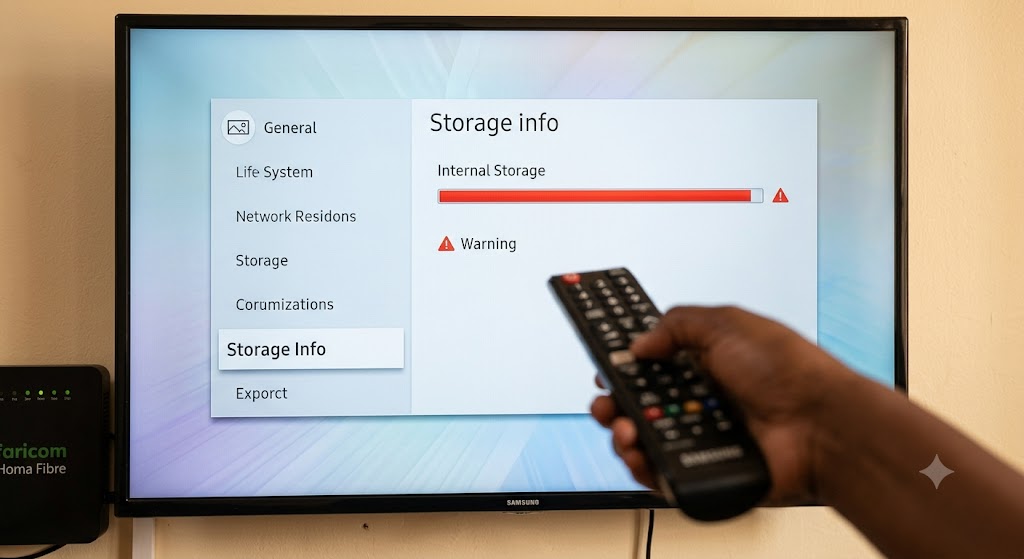
Unlike modern smartphones, smart TVs come with limited memory. When this space fills up, the television struggles to complete basic commands, leading to unresponsive menus, audio delays, and sudden app crashes.
A peer-reviewed research study titled Evaluating the Efficiency of Caching Strategies in Reducing Application Latency noted that “the highest reduction in latency was achieved by in-memory caching: response time improved by up to 62.6 per cent compared to non-cached scenarios.”
While temporary memory helps applications load content quickly, an overloaded cache creates a bottleneck that slows down the device. Clearing this stored data empties the system memory so the TV can run smoothly again.
Simple monthly steps to keep apps running smoothly
Clearing the cache once a month frees up internal storage without deleting login details, saved passwords, or watchlists. The process takes less than two minutes across most popular brands in Kenya.
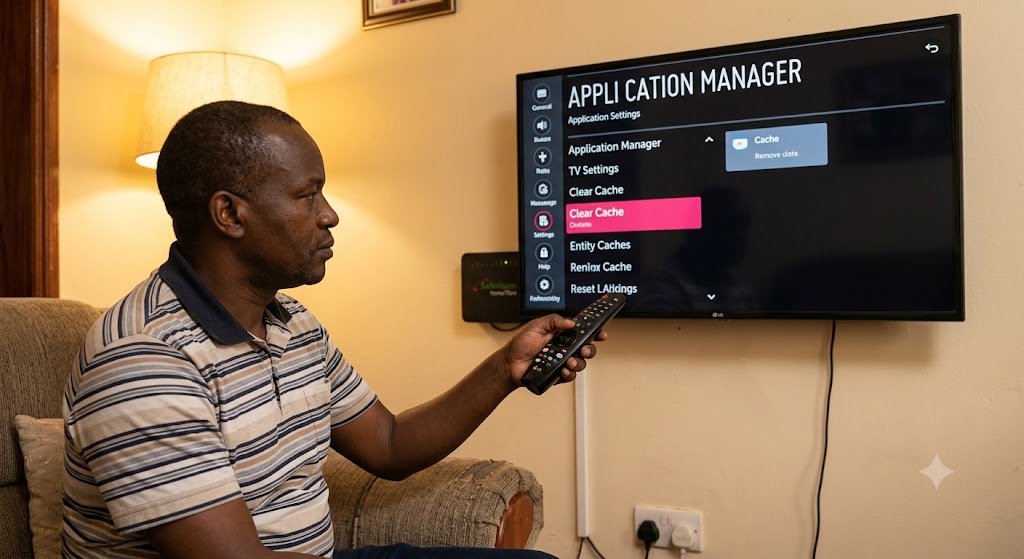
On Android TV or Google TV devices, open Settings, select Apps, choose the streaming application, and select Clear Cache. On Samsung smart TVs, open Settings, go to Support, select Device Care, and open Manage Storage to clear individual apps.
For LG models, clearing the browsing history in the Web Browser app or unplugging the power cord for 60 seconds empties the memory buffer. Taking a moment to clear these temporary files keeps streaming apps fast, prevents mid-movie buffering, and costs nothing in repair fees.