Advertisement
How to fix the ‘app Isn’t responding’ error on your Android phone
21st September, 2026 03:42 AM
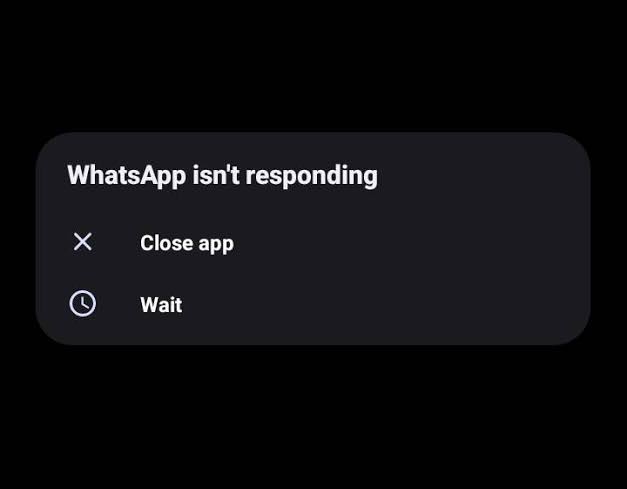
Android users may sometimes encounter an “App isn’t responding” message when opening or using an application. The pop-up usually appears when an app has frozen or is taking too long to respond.
The problem can often be fixed without deleting the app. Google recommends several troubleshooting steps, including restarting the phone, updating apps and Android, force-stopping the affected app and clearing its cache.
Restart your Android phone
The first step is to restart your phone. A restart can clear temporary system problems that may be causing an app to freeze.
If the phone is completely unresponsive, press and hold the power button for about 30 seconds until the device restarts.
Update the app
An outdated app may have compatibility or performance problems.
Open the Google Play Store, tap your profile picture, select Manage apps & device and check whether updates are available. Install any pending updates and then try opening the app again.
You should also make sure your phone is running the latest available version of Android.
Go to Settings > System > Software update and check for an available update. The exact steps may differ depending on the manufacturer and Android version.
If the app continues to freeze, you can force it to close.
Open Settings > Apps, select the affected app and tap Force stop. After closing it, open the app again to see whether the problem has been resolved.
Clear the app’s cache
Temporary files stored by an app can sometimes contribute to performance problems.
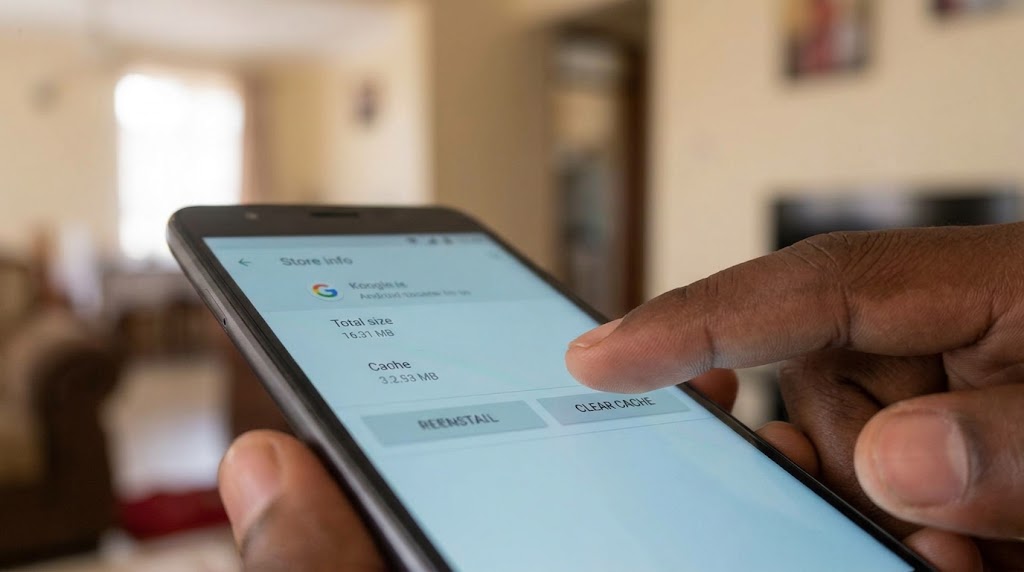
Go to Settings > Apps, select the affected app, then choose Storage & cache and tap Clear cache.
Clearing the cache removes temporary files but generally does not remove your personal data from the app.
Check your phone’s storage
Low storage can also affect how an Android phone performs.
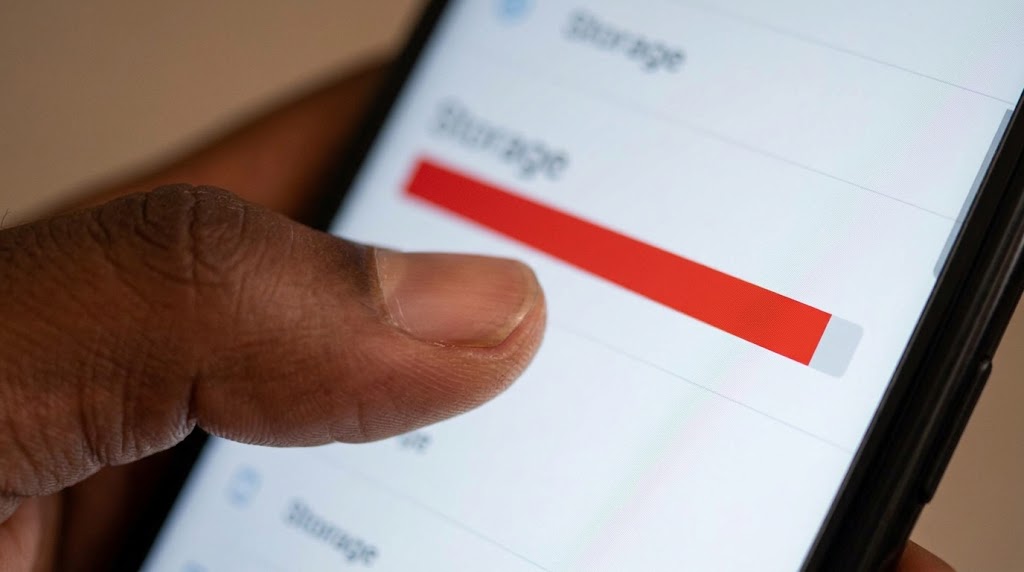
Go to Settings > Storage to see how much space is available. If your phone is almost full, delete unnecessary files, videos, downloads or apps you no longer use.
Google advises keeping some free storage available because devices can experience problems when storage becomes very low.
If the problem persists, you can uninstall the affected app and install it again from the Google Play Store.
Before doing this, check whether the app contains important information that has not been backed up, as uninstalling an app can remove data stored locally on the device.
Try safe mode
If several apps are freezing rather than just one, a recently installed app could be causing the problem.
Android’s Safe Mode allows you to start the phone without running most third-party apps. If the problem disappears in Safe Mode, recently installed apps may be responsible.
You can then remove recently downloaded apps one at a time and check whether the problem is resolved.
Author
William Muthama
William Muthama is a digital journalist with a focus on entertainment, human interest, and current affairs. Share stories: [email protected]/ [email protected]
View all posts by William Muthama