Advertisement
How to block adult content on a child’s phone using Wi-Fi and mobile data
31st May, 2026 11:12 PM
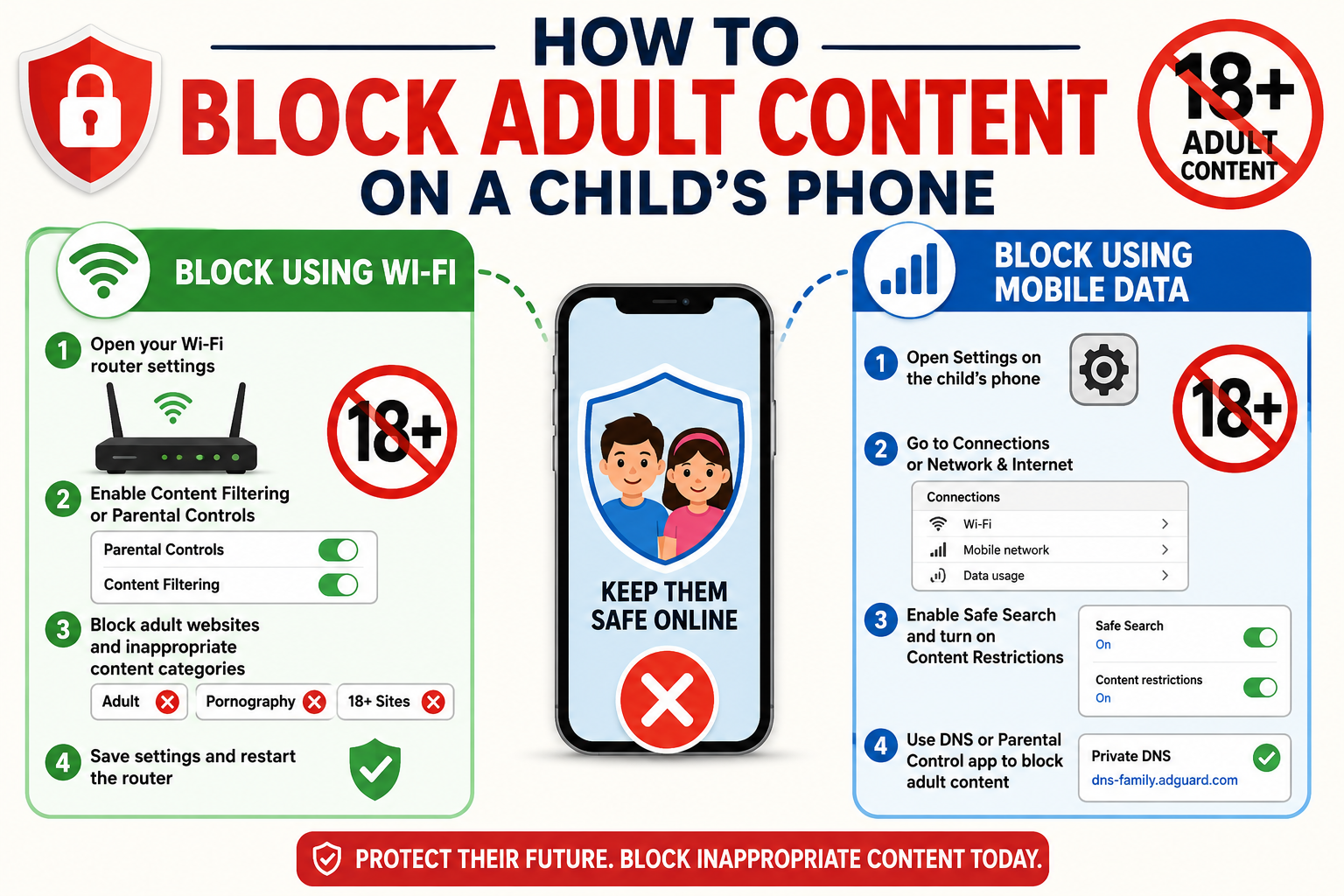
Access to smartphones has made it easier for children to learn, communicate and explore the internet.
However, it has also increased exposure to content that is not suitable for their age.
Parents are now relying on simple but effective digital tools to create safer browsing environments.
The most practical controls work in two ways: through home Wi-Fi routers and through the device’s mobile data settings.
Blocking via Wi-Fi router
Controlling internet access through a Wi-Fi router is one of the most effective methods because it protects every device connected to the home network.
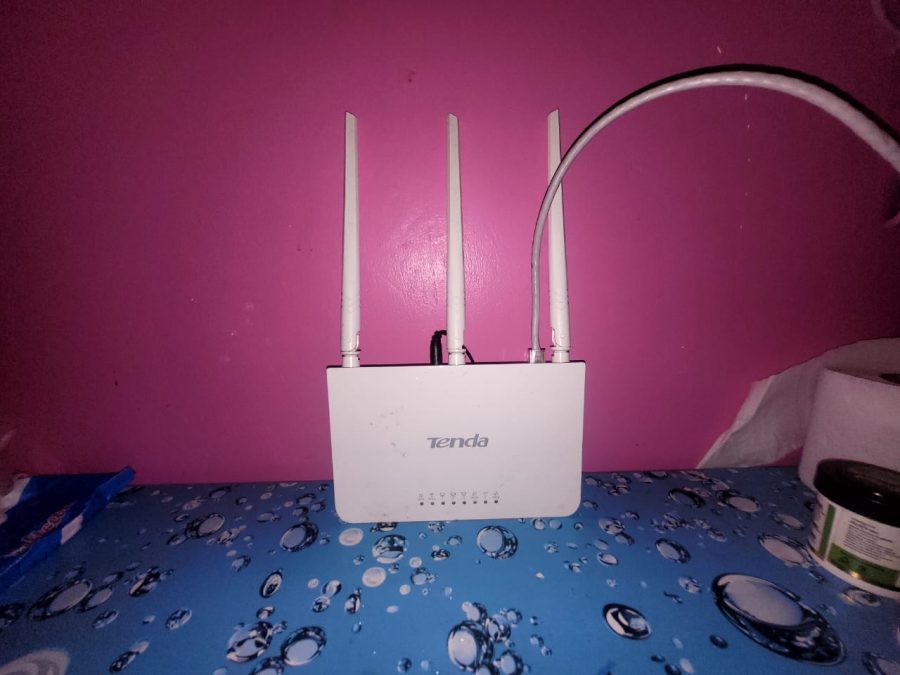
Once set, the restrictions apply automatically to phones, tablets and computers using that Wi-Fi.
Step 1: Login to router admin
Open a browser on a device connected to your home Wi-Fi. In the address bar, enter your router IP address, usually 192.168.0.1 or 192.168.1.1. A login page will appear.
Enter the administrator username and password. These are often found on the router label or provided by your internet service provider.
If the details have been changed and forgotten, a router reset may be required.
Step 2: Open the settings panel
Once logged in, access the main dashboard. Look for sections labelled parental controls, security, access control or internet filters.
The naming depends on the router brand, but most modern routers include at least one of these options.
Step 3: Enable filtering
Activate website filtering or family mode if available. Some routers come with built-in categories that automatically block adult websites and unsafe content.
If manual filtering is required, add specific website addresses or keywords associated with adult content to the block list.
Step 4: Apply device controls
Select the specific devices you want to restrict, such as your child’s phone or tablet. Many routers allow individual device control so you can apply restrictions selectively.
Step 5: Save and restart
Save the settings and restart the router if prompted. Once the network reconnects, all chosen restrictions will be active across the selected devices.

Blocking via mobile data
When a child uses mobile data bundles, Wi-Fi controls no longer apply.
In this case, restrictions must be set directly on the phone. This ensures protection continues even outside the home.
Step 1: Enable Private DNS on Android
Go to Settings, then open Network & Internet or Connections. Select Private DNS and choose “Private DNS provider hostname”.
Enter a family-safe DNS such as:
family-filter-dns.cleanbrowsing.org
Save the settings. This automatically filters adult websites across browsers and apps, even when using mobile data.
Step 2: Install the filtering app on the iPhone
Open the App Store and download a trusted DNS or parental control app such as NextDNS or Cloudflare 1.1.1.1.
Open the app and activate family filtering or safe browsing mode. This ensures that content filtering works across both Wi-Fi and mobile data connections.
Step 3: Turn on browser safety
On Google Chrome, go to settings, then privacy and security, and enable Safe Browsing and SafeSearch.
On iPhone, open Settings, go to Screen Time, then Content and Privacy Restrictions, and limit adult websites under Web Content Settings.
Step 4: Lock settings
Use a screen lock or parental control password to secure these settings.
This prevents children from easily disabling restrictions or changing network configurations.