Reasons your laptop overheats
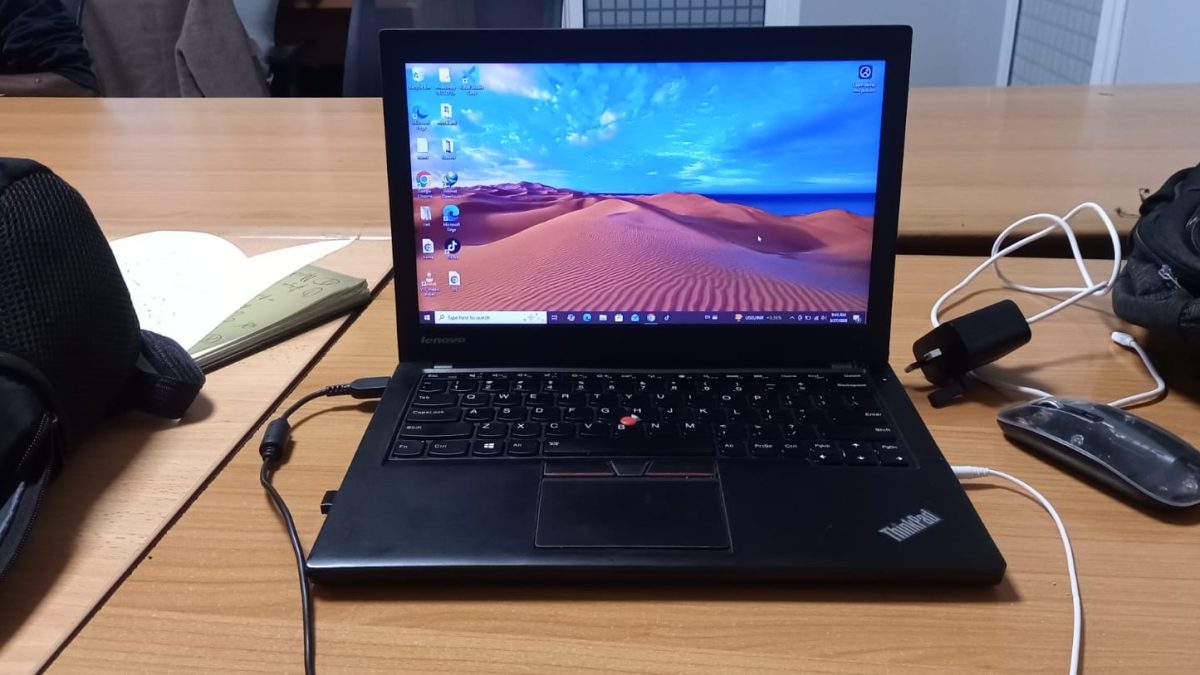
Laptop overheating is a common problem that affects performance, battery life, and overall device lifespan.
Many users only notice it when the fan becomes loud or the laptop starts lagging, but overheating usually builds up over time due to specific causes.
You might also like
If your laptop heats up frequently, it is often a signal that something is not working efficiently inside.
Understanding these causes helps you fix the problem early and avoid permanent damage.
Heavy software running on low RAM
This is one of the most common causes of overheating.
When you run heavy software such as video editors, games, or multiple browser tabs on a laptop with low RAM, the system struggles to keep up.
The processor is forced to work harder to manage tasks that the memory cannot handle efficiently.
As a result, the CPU runs at higher speeds for longer periods, generating more heat.
The cooling system tries to compensate, but if the workload remains high, heat builds up.
In simple terms, your laptop is overworking itself because it lacks enough memory to distribute tasks smoothly.
Spoiled or failing battery
A damaged battery can also cause overheating, and many people overlook this.
Laptop batteries contain chemical cells that store and release energy. Over time, these cells degrade.
When a battery becomes faulty, it may start producing unstable power or retaining excess heat during charging and usage.
In some cases, a failing battery can swell or heat up abnormally. This heat spreads to other internal components, increasing the overall temperature of the laptop.
Even if your laptop is plugged in, a bad internal battery can still interfere with power regulation and cause overheating.
Dust particles and dirt buildup
Dust is a silent but serious cause of overheating.
Over time, dust accumulates inside the laptop, especially around the cooling fan and air vents.
This blocks airflow, which is essential for removing heat from internal components.
When airflow is restricted, heat gets trapped inside. The fan may spin faster trying to cool the system, but it becomes less effective.
This leads to a gradual rise in temperature, even during normal use.
Blocked ventilation and poor airflow
Using a laptop on soft surfaces like beds or sofas can block ventilation.
Laptops are designed with air intake and exhaust vents. When these vents are covered, heat cannot escape properly.
This causes internal temperatures to rise quickly, especially during heavy use.
Hard, flat surfaces allow proper airflow and help maintain stable temperatures.
Old or dried thermal paste
Thermal paste is applied between the processor and the heat sink to improve heat transfer.
Over time, this paste can dry out and lose its effectiveness. When this happens, heat from the processor is not transferred efficiently to the cooling system.
As a result, the CPU retains more heat, causing the laptop to overheat even under moderate workloads.
Too many background processes
Many laptops run multiple background applications without the user noticing.
These processes consume CPU and memory resources, increasing workload and heat production.
Startup programs, auto updates, and hidden apps can all contribute to this.
Reducing unnecessary background activity helps lower system strain and temperature.
Faulty cooling fan
The cooling fan plays a critical role in regulating temperature.
If the fan is damaged, slow, or not functioning properly, heat cannot be expelled effectively.
This leads to rapid temperature increase inside the laptop.
A noisy or silent fan when the laptop is hot may indicate a problem.
Laptop overheating is usually caused by a combination of factors such as heavy software usage, low RAM, battery issues, dust buildup, and poor airflow.
Each of these affects how heat is generated and managed inside the device.
By identifying the cause early and taking simple steps such as cleaning, upgrading memory, or replacing faulty components, you can keep your laptop running efficiently and extend its lifespan.