How to increase your laptop’s lifespan: Practical tips that actually work
By David Nthua, March 22, 2026Laptops have quietly become one of the most essential tools in everyday life.
Whether you’re working, studying, gaming, or just streaming your favorite shows, your laptop is probably doing a lot more heavy lifting than you realize.
That’s exactly why making it last longer isn’t just a “nice-to-have” idea, it’s something that can save you money, stress, and unnecessary downtime.
Think about it for a second. A decent laptop today can cost anywhere from a few hundred to well over a thousand dollars.
Replacing it frequently isn’t just inconvenient it adds up fast. And it’s not always about dramatic failures either. Most laptops don’t suddenly stop working; they slowly degrade.
Performance drops, overheating increases, battery life shrinks, and before you know it, you’re already browsing for a replacement.
When people think about replacing a laptop, they usually focus on the upfront price. But the real cost goes deeper than that.
There’s the time spent setting everything up again, reinstalling software, transferring files, and getting used to a new system.
It’s like moving into a new house you don’t realize how much effort it takes until you’re in the middle of it.
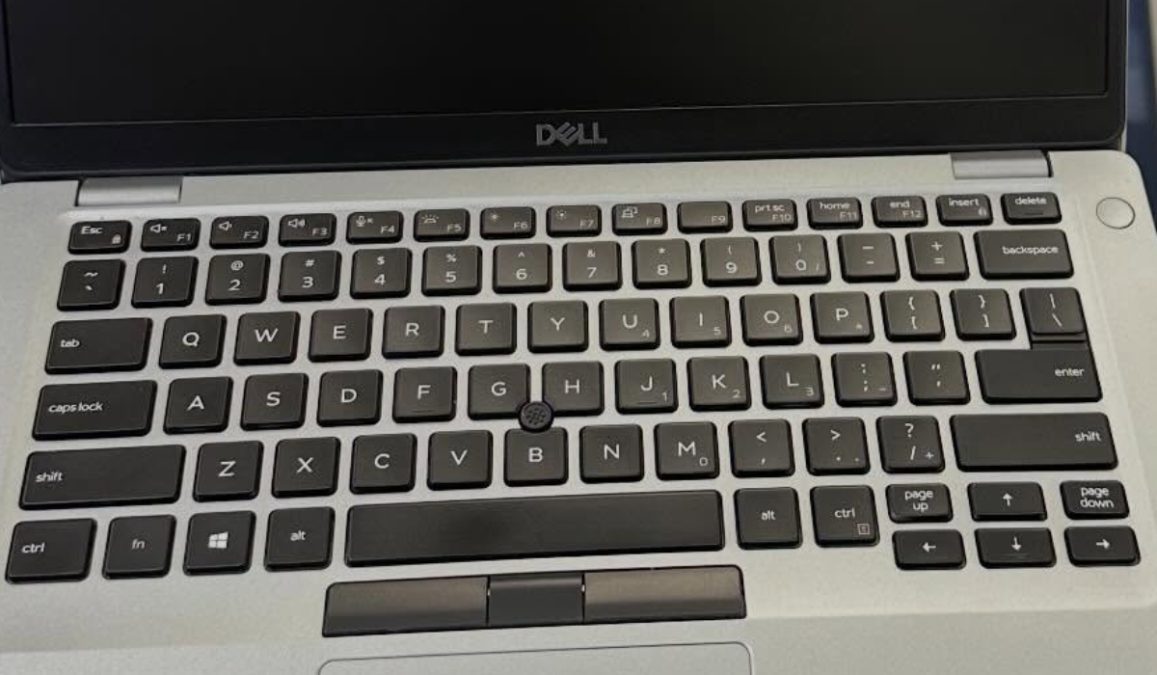
Studies suggest that the average lifespan of a laptop is around 3 to 5 years, but with proper care, many devices can easily last 6 to 8 years or more.
That’s a huge difference. Extending your laptop’s life by even two years can significantly reduce your long-term expenses.
Impact of frequent upgrades
There’s also an angle people often overlook, the environmental impact. Every discarded laptop contributes to electronic waste, which is already a growing global issue.
According to reports, the world generates over 50 million metric tons of e-waste annually, and laptops are part of that problem.
By simply taking better care of your device, you’re not just saving money, you’re also reducing waste. It’s a small change with a surprisingly big ripple effect.
Avoid unnecessary disassembly
It might be tempting to open up your laptop when something seems off. Maybe it’s overheating, making noise, or just running slower than usual.
You’ve probably seen tutorials online that make it look easy, just grab a screwdriver, pop the back off, and fix it yourself. But here’s the reality: unnecessary disassembly can do more harm than good.
Modern laptops are not designed like old-school desktop computers. They’re compact, tightly packed, and often delicate.
Every component inside is carefully placed, and even a small mistake can lead to bigger issues.
One wrong move and you could disconnect a cable, damage a connector, or even short-circuit the motherboard.
Even if you’re careful, there’s always a risk. Screws are tiny and easy to lose.
Some laptops use different screw sizes in different spots, and mixing them up can damage the casing or internal parts.
It’s like trying to reassemble a puzzle where all the pieces look almost the same, it’s trickier than it seems.
Common risks
Here are some of the most common problems people run into when they open their laptops unnecessarily:
- Lost screws: Small, nearly identical screws can easily roll away or get misplaced.
- Cut or pinched wires: Internal cables are thin and fragile.
- Broken clips or casing: Forcing open panels can snap plastic parts.
- Static damage: Even a small static discharge can harm sensitive components.
Instead of opening your laptop frequently, it’s better to only do so when absolutely necessary, and ideally with proper tools or professional help.

Treat your laptop like a sealed unit unless you truly know what you’re doing.
Keep laptop away from kids
This might sound obvious, but you’d be surprised how often laptops get damaged because of simple, avoidable accidents. A spilled drink or a curious child pressing random keys can cause serious issues in seconds.
Picture this: you’re working at your desk with a cup of coffee beside your laptop. You reach for something, your elbow nudges the cup, and suddenly liquid is everywhere. It happens fast, and once it does, the damage can be immediate.
Kids, on the other hand, bring a different kind of risk. They’re naturally curious and may treat your laptop like a toy.
Pressing keys forcefully, dropping the device, or even inserting objects into ports, these things happen more often than you’d think.
Keeping your laptop safe doesn’t require complicated strategies. A few simple habits can make a huge difference:
- Always keep drinks at a safe distance.
- Use your laptop on a stable surface.
- Store it out of reach of children when not in use.
- Consider using a keyboard cover for added protection.
It’s really about awareness. Once you start paying attention to these small details, you’ll naturally avoid most of the common accidents that shorten a laptop’s lifespan.
Safe Home Cleaning Solutions for Your Laptop
Cleaning your laptop is one of those things people either ignore completely or overdo with the wrong products. Both extremes can cause problems. The goal is to keep your device clean without exposing it to harmful substances.
What to avoid
You don’t need fancy or expensive cleaning kits. In fact, some of the best solutions are already in your home.
A dry microfiber cloth is your best friend when it comes to cleaning screens and surfaces. It’s gentle, effective, and doesn’t leave scratches.
Avoid using:
- Harsh chemicals like bleach or ammonia
- Excessive water or wet wipes
- Rough fabrics like paper towels
A slightly damp cloth (not wet) can be used for stubborn dirt, but always make sure your laptop is powered off before cleaning.
Procedure on cleaning
Here’s a simple routine you can follow:
- Turn off your laptop and unplug it.
- Use a dry microfiber cloth to wipe the screen and keyboard.
- For tougher spots, lightly dampen the cloth—never apply liquid directly.
- Let it dry completely before turning it back on.
This might seem basic, but consistency is what matters. Regular cleaning prevents buildup that can affect performance and hygiene.
Blowing Out Dust and Managing Heat
If there’s one silent killer of laptops, it’s dust. You don’t see it building up inside, but over time, it can clog vents, block airflow, and cause overheating.
Why dust is the enemy
Dust acts like a blanket over your laptop’s cooling system. When air can’t flow properly, heat gets trapped inside.
And heat is the enemy of electronics. It can slow down performance, damage internal components, and shorten your device’s lifespan significantly.
You might notice your laptop getting unusually warm or the fan running loudly, that’s often a sign that dust is building up.
How to apply thermo paste
Blowing out dust using compressed air is one of the safest ways to maintain your laptop without opening it. Focus on vents and fan areas, and do it every few months.
Thermal paste, on the other hand, is a bit more advanced. It helps transfer heat from the CPU to the cooling system. Over time, it can dry out and become less effective.
Applying new thermal paste can improve cooling, but it requires opening the laptop. If you’re not confident, it’s better to let a professional handle it.