Advertisement
How to block specific devices and limit users on your Wi-Fi network
03rd June, 2026 12:11 AM
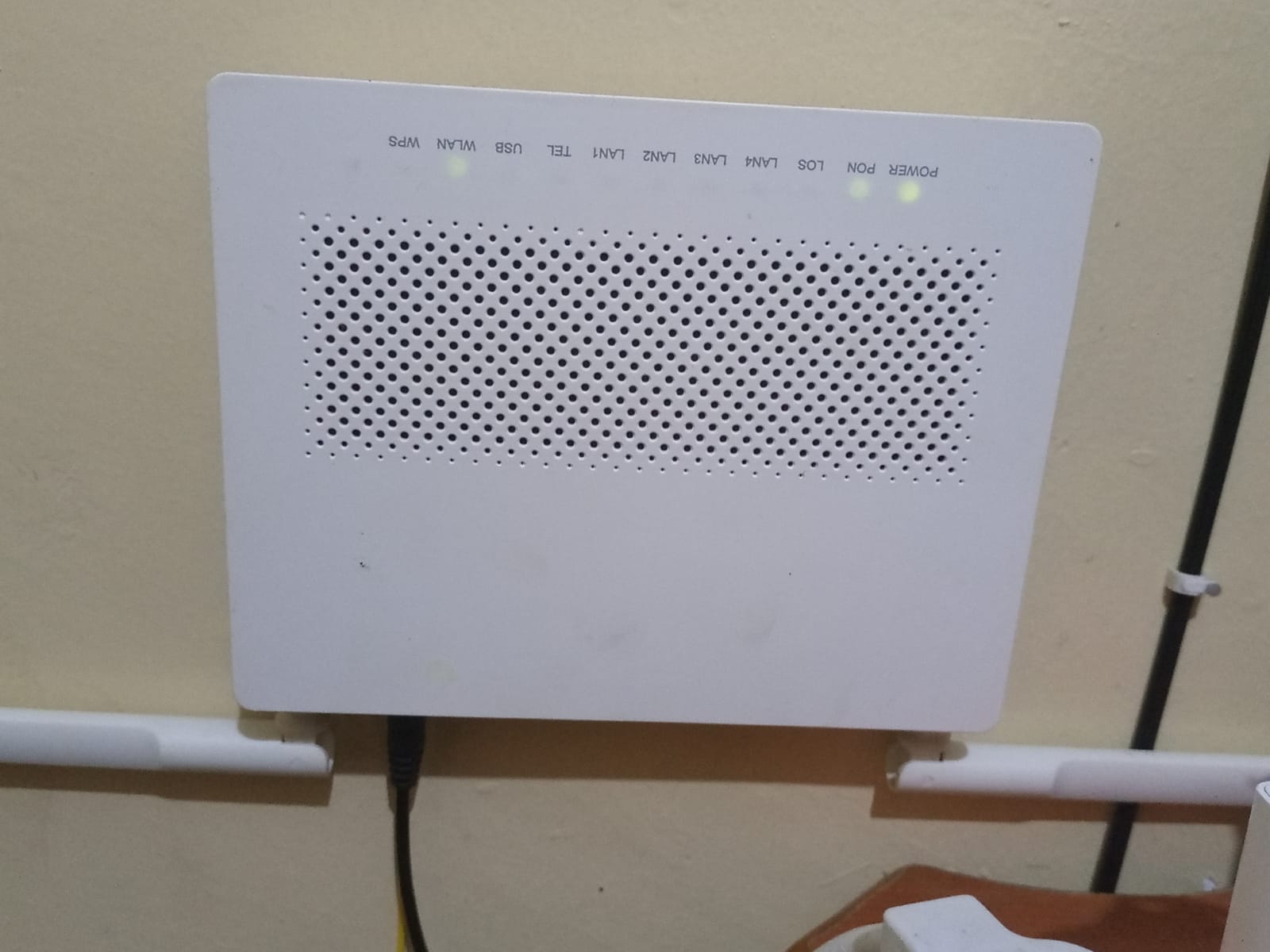
Subscribing to a monthly WIFI package and then realising that someone else is depending on it can send cold chills down the spine.
For many households and small businesses, internet bundles are expensive, and unexpected users quietly connecting to your network can slow speeds and drain data much faster than expected.
The good news is that modern routers allow you to control exactly who connects to your Wi-Fi.
You can block specific devices, limit the number of users, and even monitor everything happening on your network in a few simple steps.
This is not about targeting anyone. It is about protecting your connection, your speed, and your money.
How Wi-Fi access works
Every device that connects to Wi-Fi uses a unique identifier called a MAC address. Think of it like a digital ID card for your phone, laptop or smart TV.
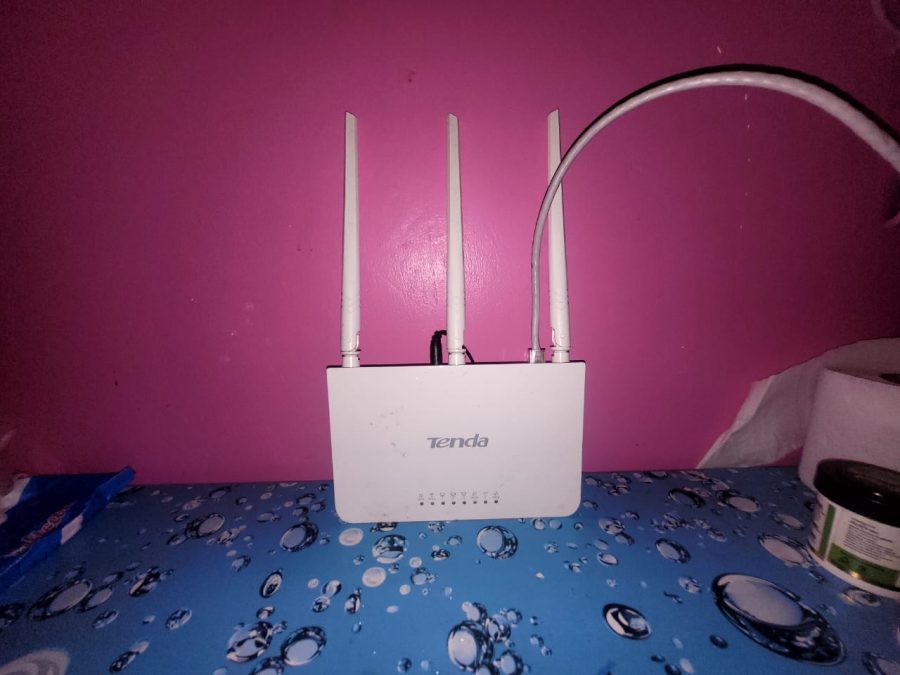
Even if someone knows your Wi-Fi password, your router still records every device that connects. This means you can see, control, or remove any device at any time through the router settings.
Understanding this is the first step to taking control of your internet connection.
How to access router settings
To manage devices on your Wi-Fi, you first need to log into your router.
Open a browser on your phone or computer and type your router’s IP address. Common ones include 192.168.0.1 or 192.168.1.1.
You will be asked to enter a username and a password. These are usually found on a sticker at the back of your router or provided by your internet service provider.
Once inside, you will see the router dashboard where all connected devices are listed.
How to see connected devices
Inside the router menu, look for a section called “Connected devices”, “Device list” or “DHCP clients”.
This section shows all phones, laptops, TVs and other gadgets currently using your Wi-Fi.
Each device is usually listed with its name, IP address and MAC address. If you notice unfamiliar devices, that means someone else is using your internet.

How to block a specific device
To block a device, find its MAC address in the connected devices list.
Most routers have an option called “MAC filtering” or “Access control”.
You simply add the unwanted device to the blocked list and save changes.
Once blocked, that device will no longer be able to connect to your Wi-Fi, even if it has the correct password.
In some routers, the device may disconnect immediately. In others, it will be blocked the next time it tries to reconnect.
How to limit the number of users
Another useful feature is limiting how many devices can connect at the same time.
Inside the router settings, look for “Wireless settings” or “Max users”.
You can set a maximum number of connections, for example, 5 or 10 devices, depending on your package.
Once the limit is reached, no additional devices will be allowed to connect until one disconnects.
This is especially useful in homes where Wi-Fi is shared among family members or in small offices.
How to improve Wi-Fi security
Blocking devices is helpful, but prevention is even better.
Changing your Wi-Fi password regularly ensures that anyone who previously had access gets disconnected.
It is also advisable to use a strong password that combines letters, numbers and symbols.
Another useful feature is creating a guest network. This allows visitors to use Wi-Fi without accessing your main network or personal devices.