Step-by-step guide to changing your Wi-Fi password at home
By William Muthama, November 29, 2025Changing your Wi-Fi password might seem difficult, but it’s often necessary if you want to secure your network, lock out neighbours using your connection, or prevent unauthorised devices from slowing down your internet.
It is also a simple way to refresh your network and protect your personal data.
The process works on almost all home routers, including TP-Link, Netgear, ASUS, Linksys, Google Nest, and BT Hub, and usually takes just a few minutes.
To begin, you need a device already connected to your Wi-Fi, your router’s admin username and password, and the router’s IP address, which is typically printed on the router.
Finding your router’s IP address
The first step is identifying your router’s IP address. Common default addresses include 192.168.0.1, 192.168.1.1, 192.168.1.254, or 10.0.0.1.
On Windows, open the Command Prompt, type ipconfig, and look for the “Default Gateway”. Mac users can navigate to System Settings, select Network, click Wi-Fi, and check the TCP/IP tab under “Router”.
On mobile devices, the router address is usually visible under Wi-Fi settings when you tap your connected network.
Accessing router settings
Once you have the IP address, open any web browser, type it into the address bar, and log in using your admin credentials.
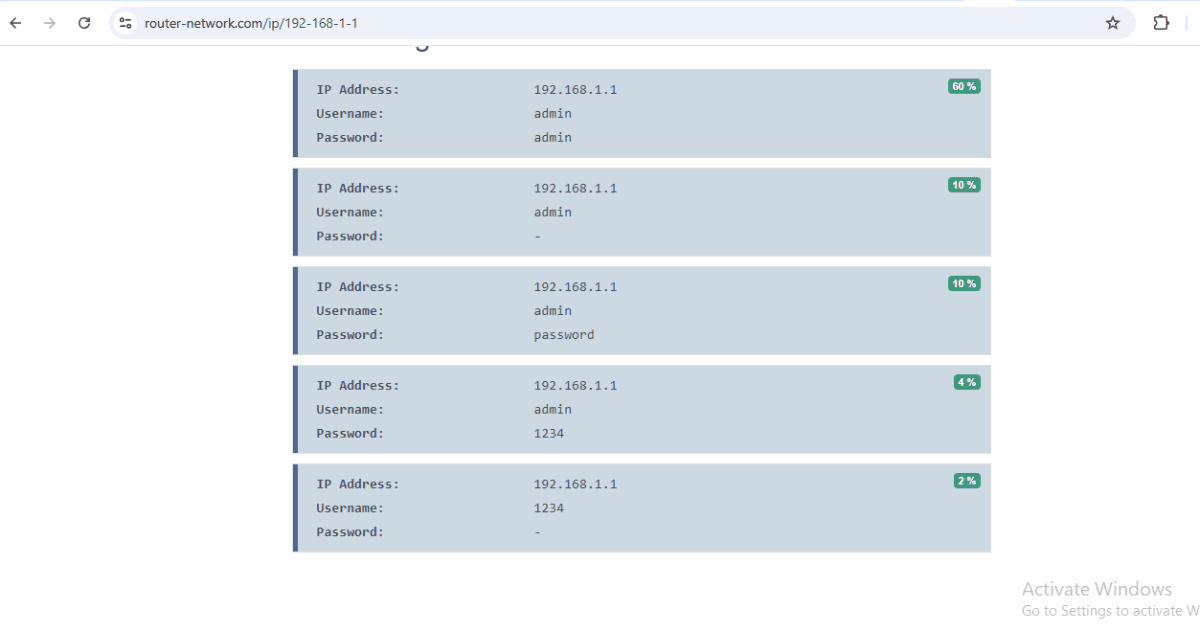
Default usernames and passwords are often “admin/admin” or “admin/password,” but if these were changed and forgotten, a factory reset may be required.
Each router brand has slightly different menu structures, such as TP-Link’s “Wireless Security” or Netgear’s “Advanced → Wireless Setup.” Google Nest users can manage Wi-Fi settings through the Google Home app.
Updating your Wi-Fi password
After accessing the correct menu, delete the old password and enter a new, strong password of at least twelve characters, combining letters, numbers, and symbols.
Keep encryption set to WPA2-PSK (AES) or WPA3 if available, then save your changes. The router may restart, and all connected devices will need to reconnect using the new password.
Extra security tips
Consider changing your router’s admin password, disabling WPS if unused, and hiding your network name for additional privacy.
If you forget your admin password or cannot access your router, contact your internet service provider for assistance. They can guide you through recovery or reset the router remotely.
Regularly updating your Wi-Fi password and using strong credentials helps maintain a secure, reliable, and fast home network.