Advertisement
How to unsend an email sent wrongly on Gmail
28th July, 2026 06:09 PM
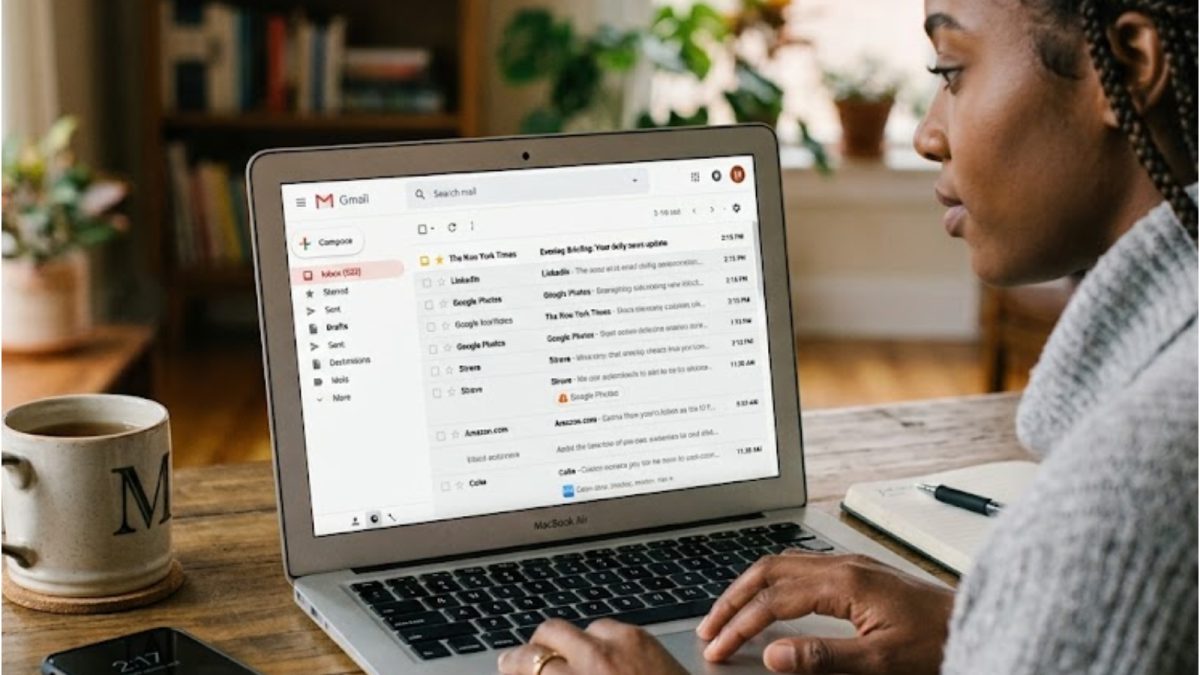
Have you ever hit the Send button on an email only to realise moments later that you forgot to attach a file, made a spelling mistake or accidentally sent it to the wrong person?
The good news is that Gmail has a built-in Undo Send feature that can save you from these common email mishaps. Even better, you can customise how long the option remains available, giving you more time to catch mistakes before your email is delivered.
Many Gmail users are familiar with the Undo Send button that briefly appears after an email is sent. However, what many people do not know is that the feature can be adjusted to stay on screen for up to 30 seconds, giving you extra time to change your mind.
Whether you have spotted a typo, forgotten an attachment or realised you have sent the message too soon, extending the Undo Send timer can help you avoid embarrassing or costly mistakes.
How undo send feature works
Despite its name, Gmail’s Undo Send feature does not actually recall an email that has already been delivered.
Instead, Gmail delays sending your message for a short period. During that delay, you will see an Undo button appear at the bottom of your screen.
If you click it before the timer expires, the email is cancelled and reopened as a draft, allowing you to edit or delete it before sending it again.
How to increase the Undo Send timer
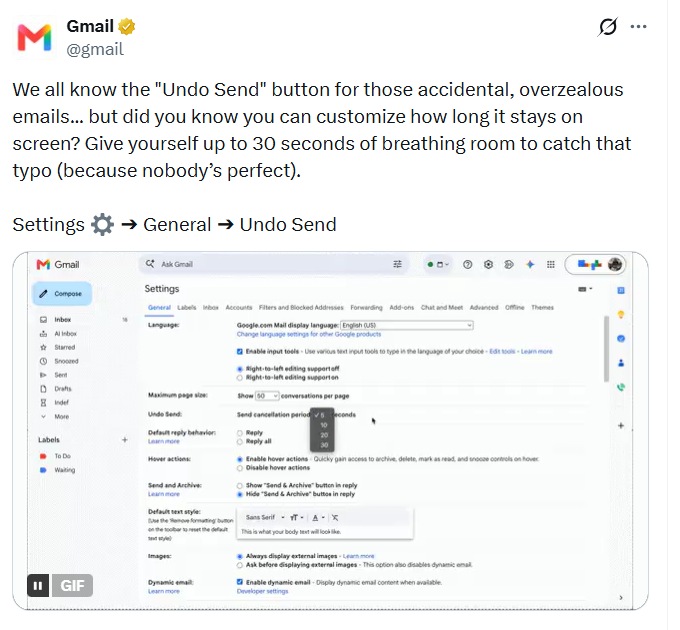
If you want more than a few seconds to review your email, Gmail allows you to extend the cancellation period to a maximum of 30 seconds.
Follow these simple steps:
- Open Gmail on your computer.
- Click the Settings icon in the top-right corner.
- Select See all settings.
- Under the General tab, scroll to Undo Send.
- Locate the send cancellation period.
- Choose your preferred duration: 5 seconds, 10 seconds, 20 seconds and 30 seconds
- Scroll to the bottom of the page and click Save Changes.
Once you have saved your settings, Gmail will use the new cancellation period for every email you send.
Why you should set it to 30 seconds
Setting Gmail’s Undo Send feature to the maximum 30-second cancellation period gives you valuable extra time to review your message before it is sent permanently.
Those additional seconds can make a significant difference, allowing you to correct spelling or grammar mistakes, attach files you may have forgotten, double-check that you’ve selected the right recipients and rewrite any sentences that may be unclear.
It can also help prevent accidentally sending incomplete or incorrect emails, giving you greater confidence that your message is ready before it reaches the recipient’s inbox.
For professionals, students and anyone who relies on email for work or communication, this small adjustment can prevent unnecessary stress and improve the quality of your messages.
While Gmail’s Undo Send feature cannot retrieve an email after it has already been delivered, increasing the cancellation period gives you one final opportunity to catch mistakes before they reach someone’s inbox.
It only takes a few seconds to change the setting, but it could save you from sending an email you will later regret.